

Brave shipped Containers this week. Version 1.92 of the browser lets you wall off tabs from one another so that cookies and site data stay locked inside whichever container you opened them in, even when two tabs point at the same website.
You can now hold several identities at once without the browser blending them together. A social manager can run two accounts on the same network side by side. A developer can sign in as an administrator in one tab and a regular user in another. Someone logged into a work account can open a video stream in its own container so their viewing history never attaches to the office login.
Brave is honest about what Containers are not. The company already isolates every site and its third-party requests through storage partitioning, which stops trackers from following you from one site to the next. Containers add none of that protection, because the browser was already doing it. They sit on top as a way to choose which version of yourself a site gets to see.
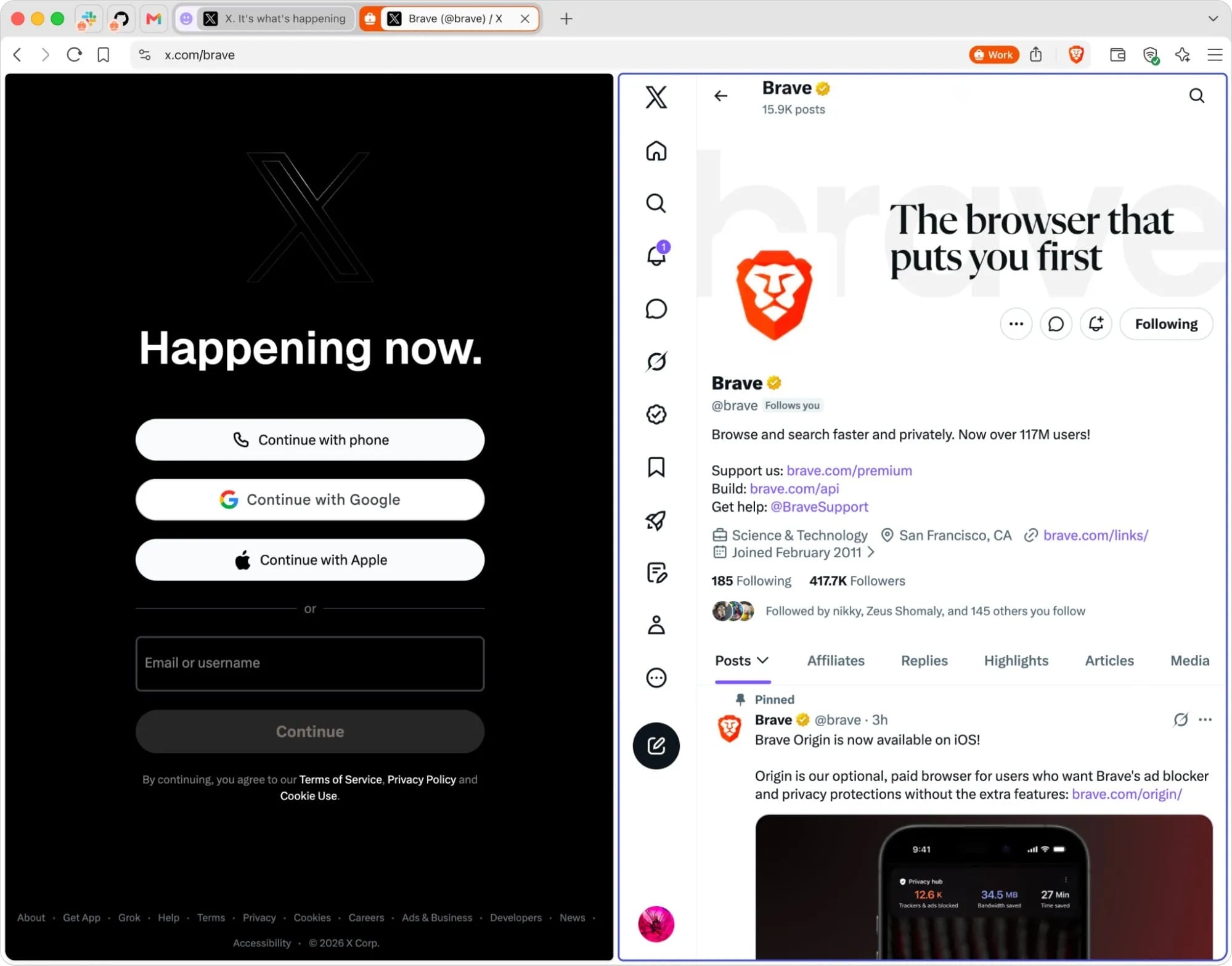
The idea traces back to Mozilla, which built Containers when browsers still let sites swap storage through third-party cookies and pass your identity around behind your back. The web spent years being rebuilt around that kind of cross-site tracking, and features like this exist because the default was designed to watch you. Compartmentalizing your own logins shouldn’t feel like a maneuver, yet on today’s web, it is one.
Firefox pioneered this style of tab isolation, and Brave is the first Chromium browser to bake it in natively rather than leaning on an add-on. For a codebase that shares its foundation with Chrome, that is a departure from Google’s priorities.
Turning it on takes a trip to Settings, under brave://settings/braveContent, where a single toggle enables the feature. After that, you right-click any tab, choose “Open in container,” and pick a category.
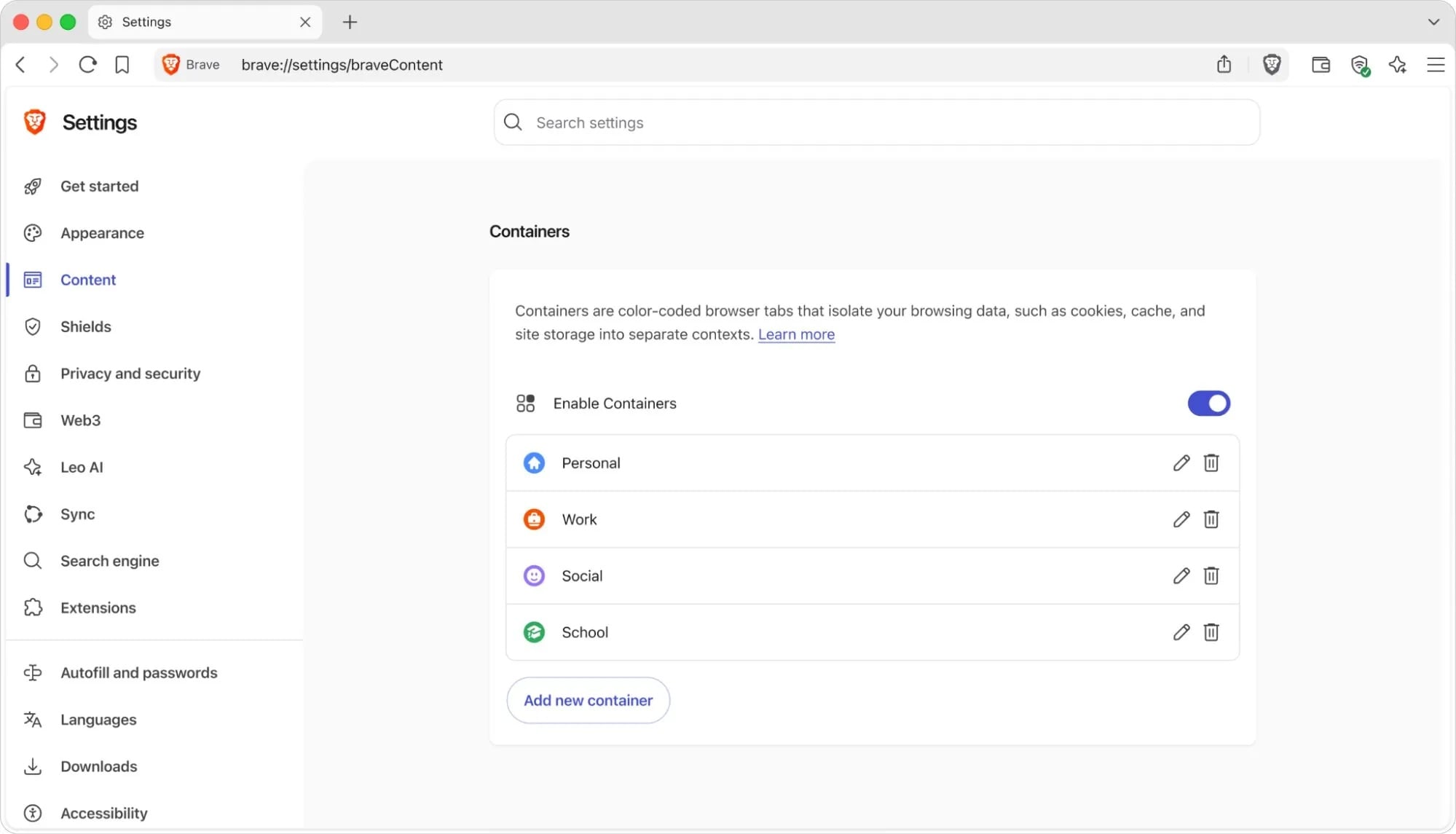
Brave ships a handful of defaults, including Personal, Work, Social, School, and Shopping, and the containers show up in the tab bar so you can tell them apart at a glance.
The feature covers Windows, macOS, and Linux with no extension to install, though Brave is releasing it in phases over a few days, so it may not appear on your machine right away. Mobile isn’t part of this release.